How do I switch the Wolfram application to dark mode?
Read this article in: Deutsch, Español, Français, 日本語
Since Version 14.3, the Wolfram application includes a dark mode interface for users who prefer light fonts on dark backgrounds. By default, the user interface’s mode follows the operating system’s setting. However, it can also be set at the notebook or application level.
Enable Dark Mode for a Notebook
-
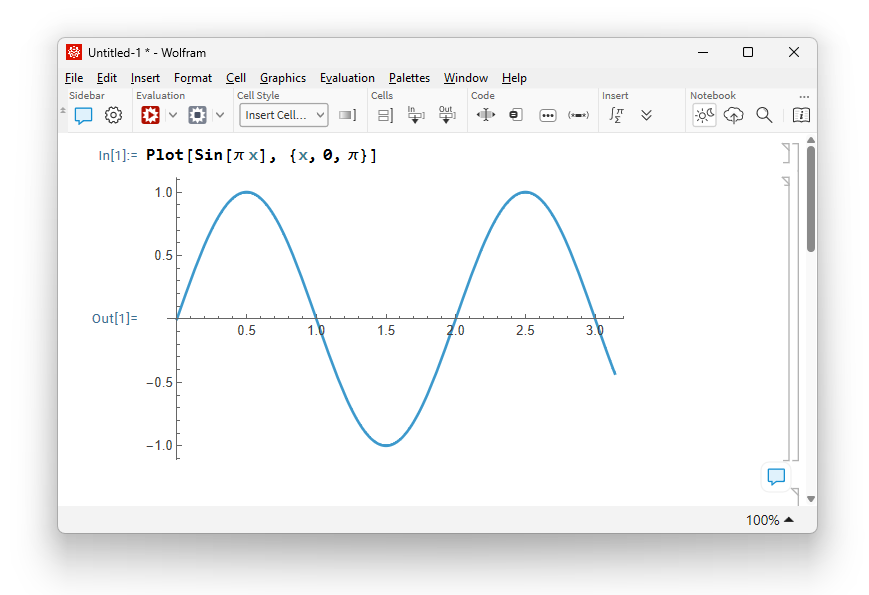
In the notebook’s toolbar, navigate to the “Notebook” section.
-
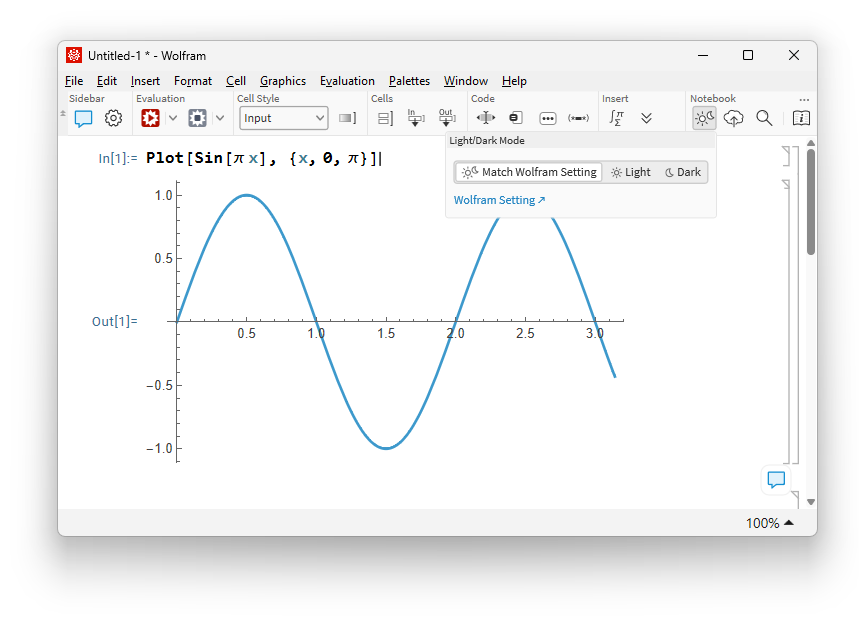
Select the “Light/Dark mode for this Notebook” icon. The Light/Dark Mode drop-down menu opens.
-
Select “Dark” to switch to dark mode.
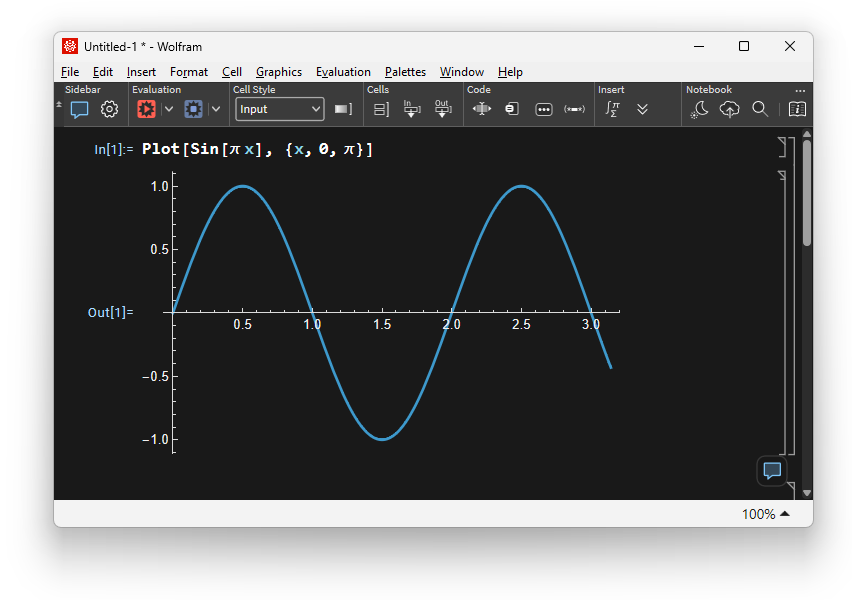
Alternatively, select “Light” to enforce light mode. Select “Match Wolfram Setting” to return to the application’s defaults.
Dark Mode at the Application Level
-
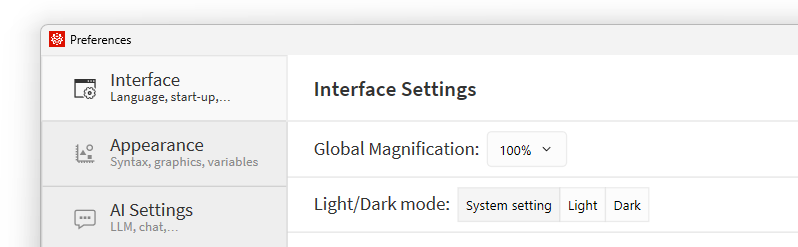
Navigate to Edit ▶ Preferences ▶ Interface. For macOS, navigate to Wolfram ▶ Settings ▶ Interface.
-
Under Interface Settings, in the “Light/Dark mode” line, select “Dark” to switch to dark mode.
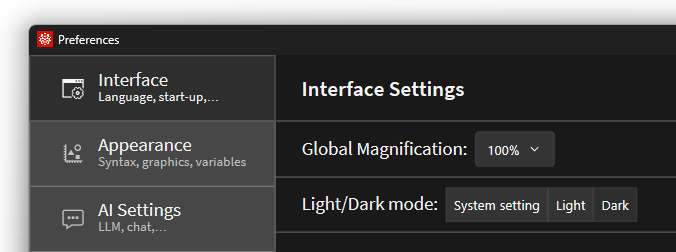
Alternatively, select “Light” to enforce light mode. Select “System setting” to follow the operating system’s default.
Contact Support
Whether you have a question about billing, activation or something more technical, we are ready to help you.


1-800-WOLFRAM (+1-217-398-0700 for international callers)
Customer Support
Monday–Friday
8am–5pm US Central Time
- Product registration or activation
- Pre-sales information and ordering
- Help with installation and first launch
Advanced Technical Support (for eligible customers)
Monday–Thursday
8am–5pm US Central Time
Friday
8:30–10am & 11am–5pm US Central Time
- Priority technical support
- Product assistance from Wolfram experts
- Help with Wolfram Language programming
- Advanced installation support