How can I access the Wolfram MCP Service using the Wolfram Local MCP Bridge on macOS?
The Wolfram Local MCP Bridge allows AI applications to access Wolfram|Alpha, Wolfram Language and the Wolfram Knowledgebase through the local Model Context Protocol (MCP) but is only intended for use by AI clients that cannot communicate or authenticate with remote MCP servers.
Once set up, these apps can directly use Wolfram-powered tools for accurate computations and knowledge queries.
The following instructions guide you through installing the Wolfram MCP Service proxy application and configuring your client to connect to it. On macOS, Claude and Cursor can be configured automatically.
Setting Up the Wolfram MCP Service Application
-
Download the Wolfram MCP Service installer.

-
Open your Downloads folder. Double-click the installer file.

-
Double-click the icon to start the installation.

-
In the installer window, click Continue.

-
Click Install.

-
Wait for the installation to complete.

-
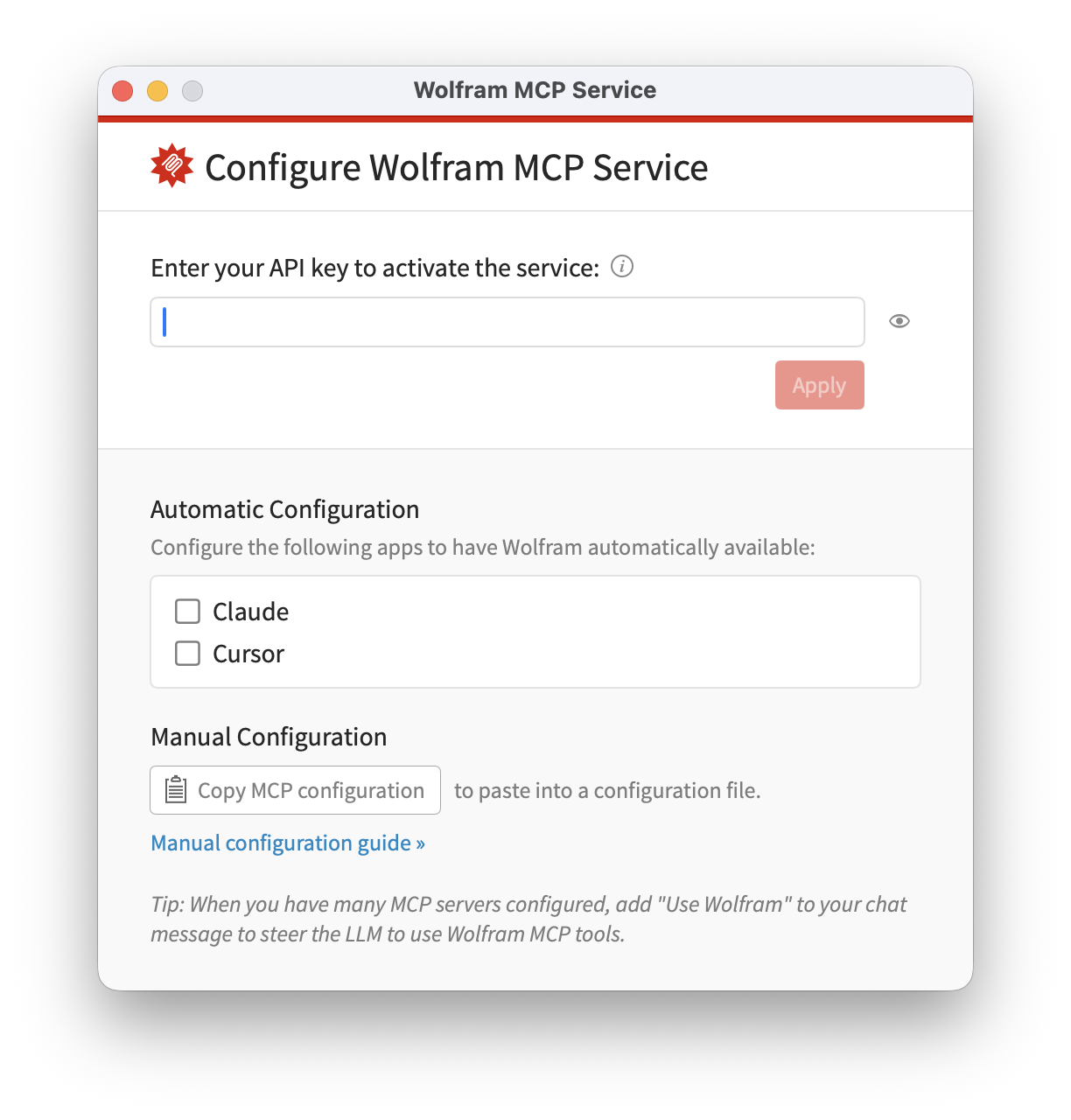
Open Wolfram MCP Service from the Applications folder.
-
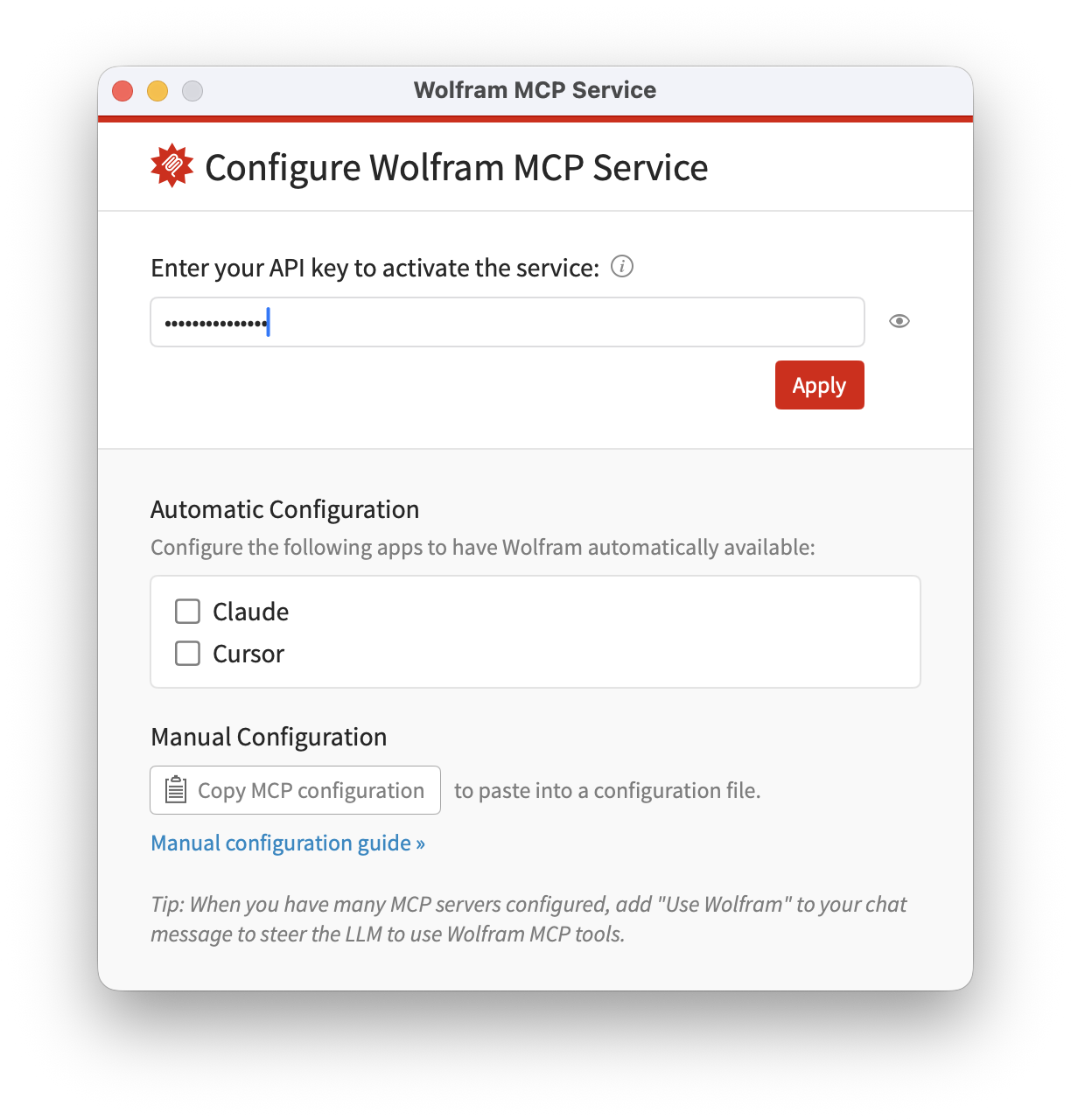
Enter your Wolfram API key.
-
If your client is listed in the Automatic Configuration box, skip to the following Automatic Configuration section to complete the setup.
Otherwise click Apply and continue here. - Click Copy MCP configuration.
-
Open your LLM’s configuration file (for example,
mcp.jsonorconfig.json). -
Add the following configuration:
{
  "mcpServers": {
    "WolframTools": {
      "command": "/Applications/WolframMCPService.app/Contents/Resources/bin/mcp_server",
      "args": [],
      "env": {
        "WOLFRAM_AUTH_KEY": "<YOUR-WOLFRAM-API-KEY>"
      }
    }
  }
}
where
<YOUR-WOLFRAM-API-KEY>is your Wolfram MCP Service API key. - Save the file.
- Restart the LLM application.
- Run a test query to confirm the MCP connection is working.
Setting Up the Wolfram Local MCP Bridge Application When Automatic Configuration Is Supported
- If you have not already, complete steps 1–8 of the installation and API key setup as described above.
-
In the Automatic Configuration section, select Claude or Cursor.
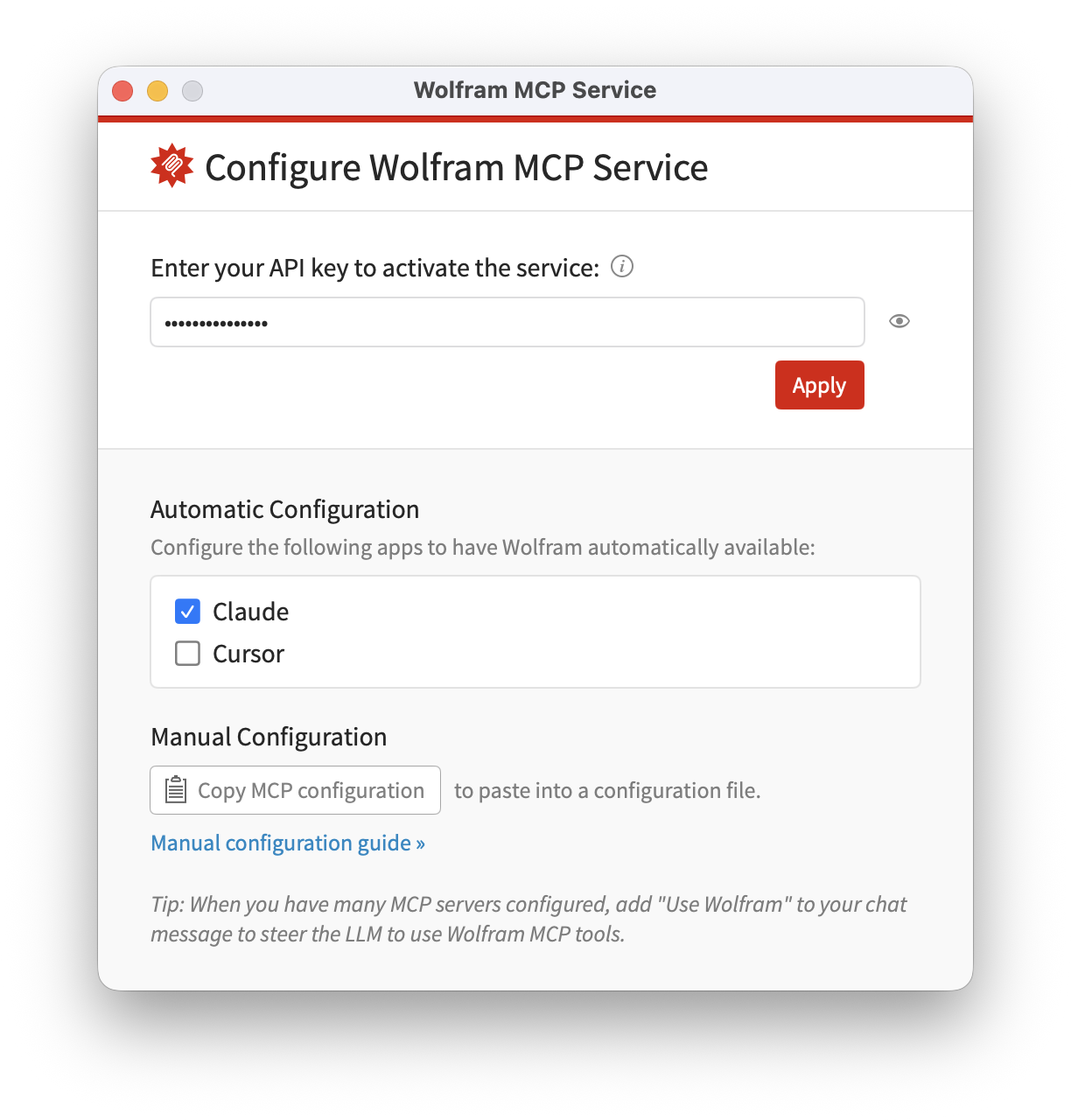
- Click Apply to save the configuration.
Testing the Wolfram MCP Service Application
We illustrate verifying your successful setup using Claude as an example. Please use equivalent steps in other AI applications.
-
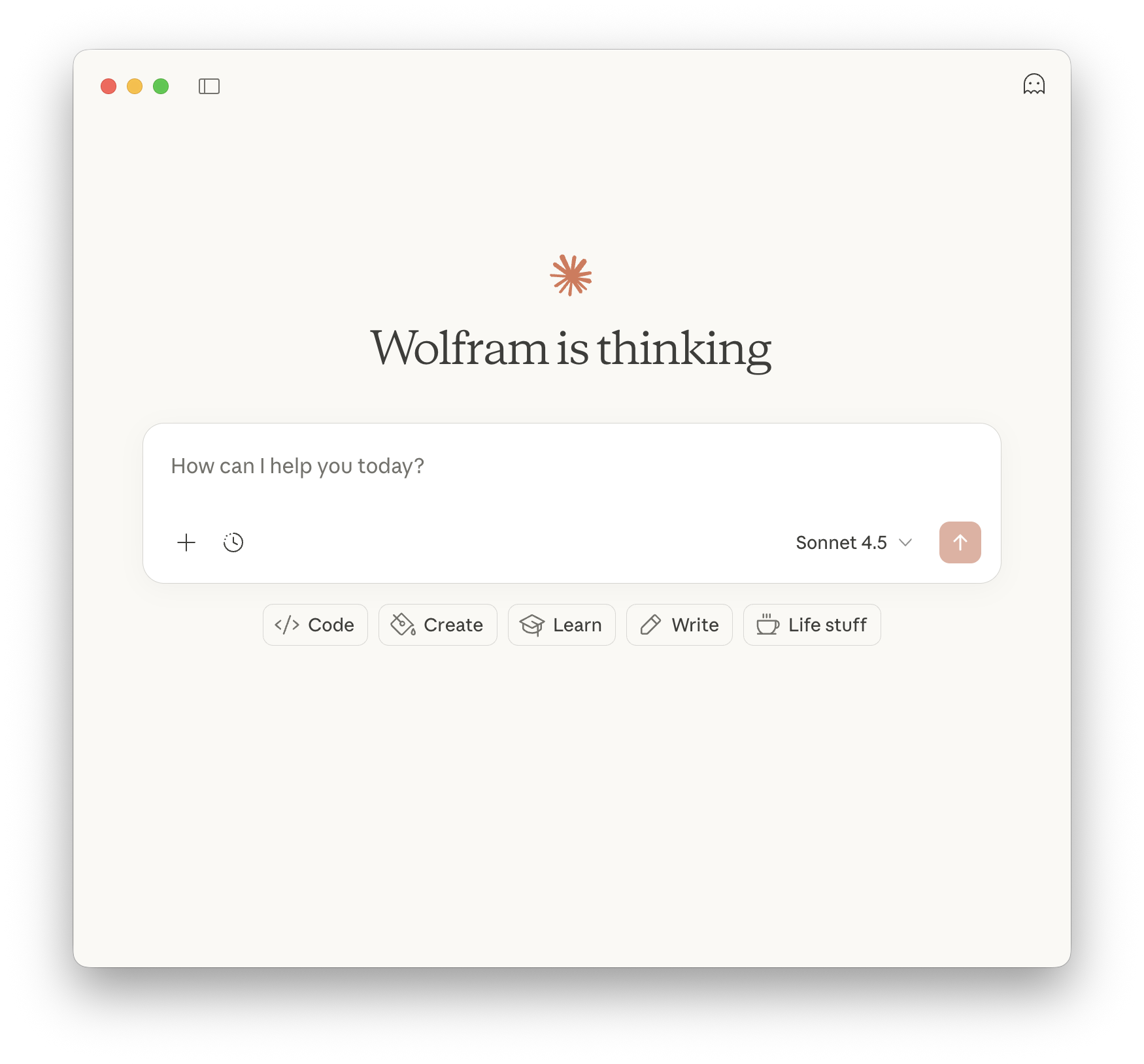
Open Claude Desktop.
-
Open the Tools menu and select Connectors.
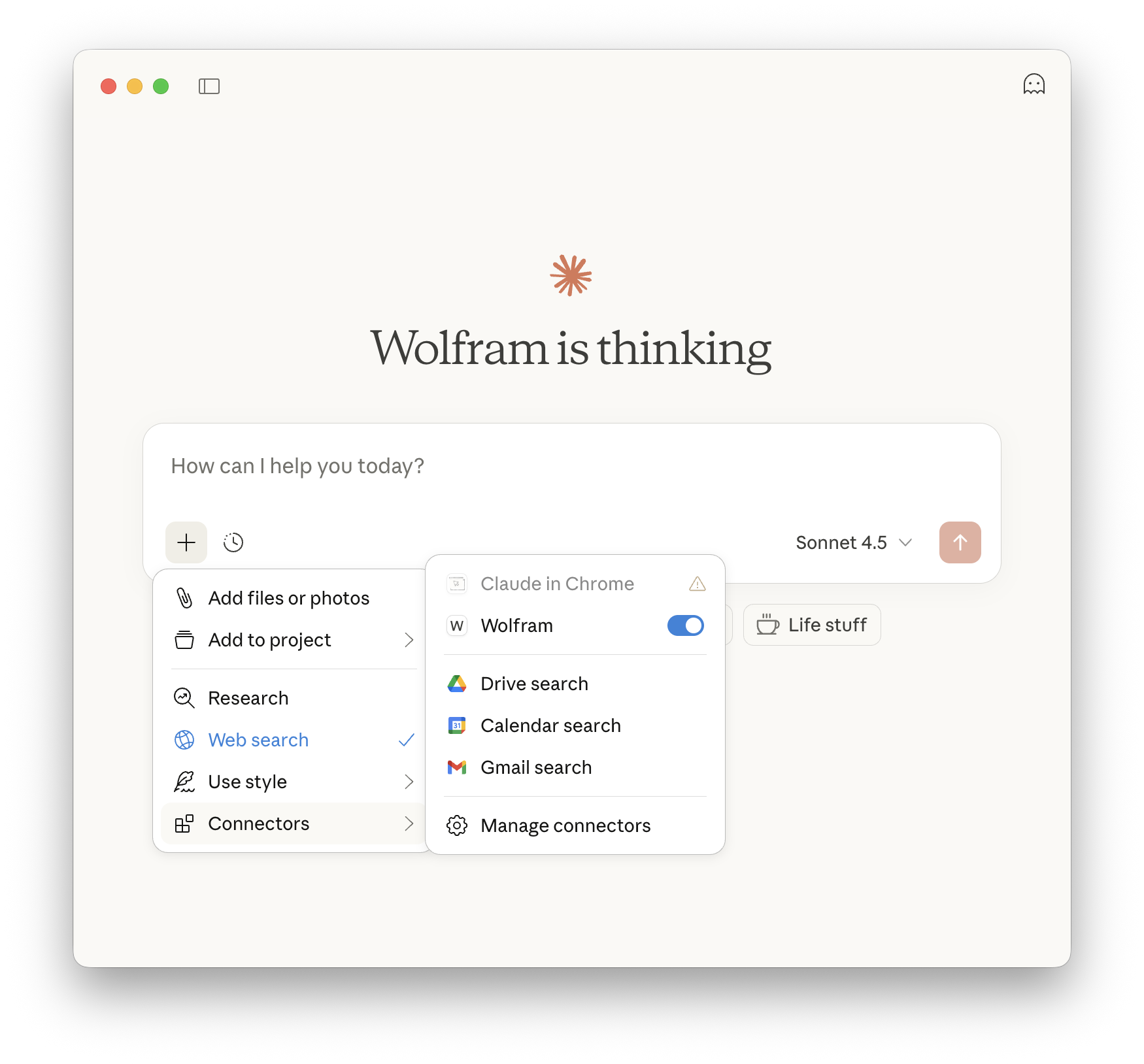
- Verify that Wolfram is displayed and activated.
- Start a new conversation.
-
Ask Claude a simple Wolfram-powered question.
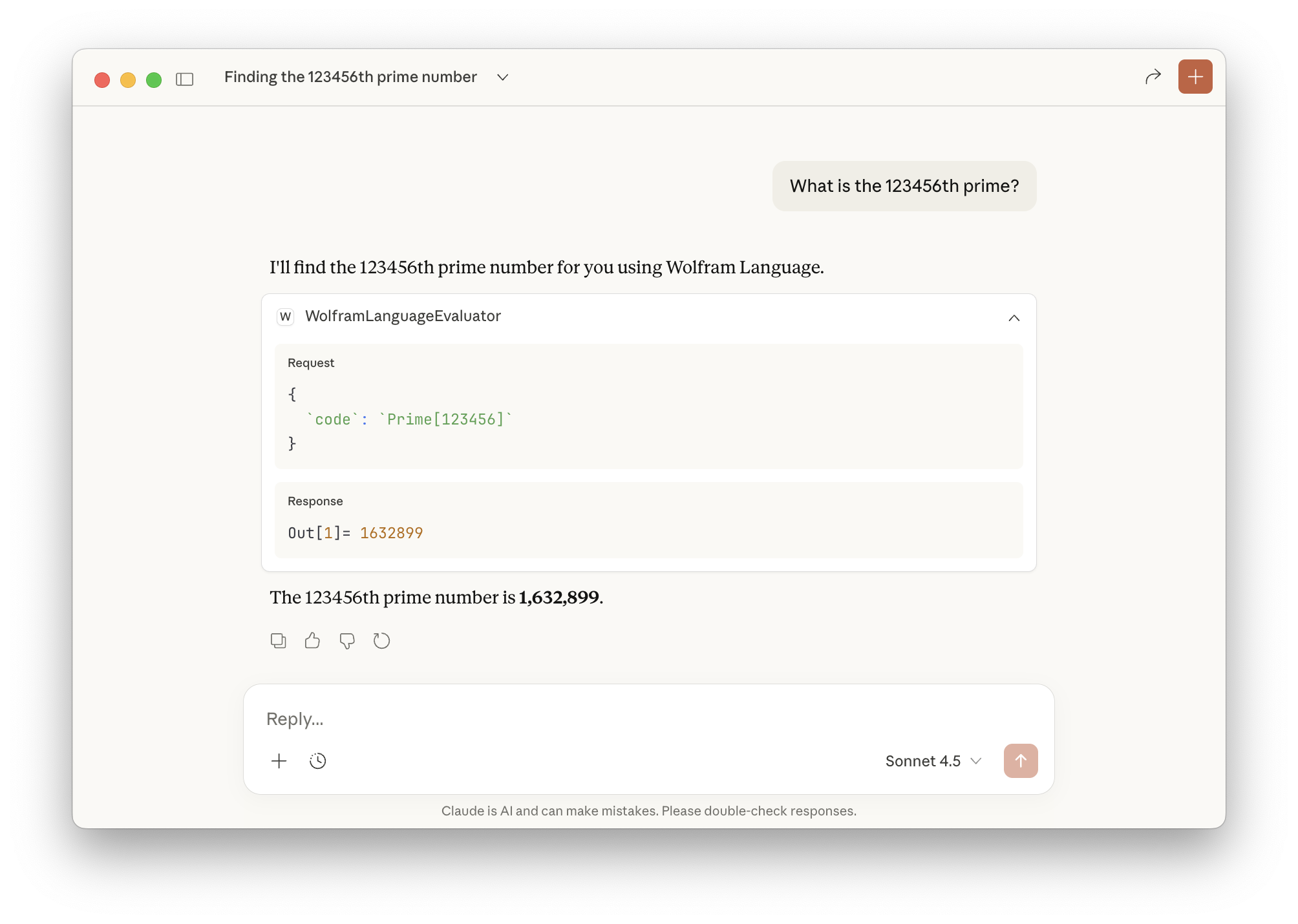
- Confirm the response is returned using a Wolfram tool.
Contact Support
Whether you have a question about billing, activation or something more technical, we are ready to help you.


1-800-WOLFRAM (+1-217-398-0700 for international callers)
Customer Support
Monday–Friday
8am–5pm US Central Time
- Product registration or activation
- Pre-sales information and ordering
- Help with installation and first launch
Advanced Technical Support (for eligible customers)
Monday–Thursday
8am–5pm US Central Time
Friday
8:30–10am & 11am–5pm US Central Time
- Priority technical support
- Product assistance from Wolfram experts
- Help with Wolfram Language programming
- Advanced installation support