How can I deploy a local MCP server using Wolfram AgentTools?
AgentTools is a Wolfram Language paclet that implements a Model Context Protocol (MCP) server for your local Wolfram Desktop product. It provides agentic access to your existing Wolfram applications, allowing them to power Wolfram Foundation Tool capabilities in LLM systems.
Configuring the Local Wolfram MCP Integration
In your Wolfram Desktop application, run the following command:
CopyPacletSymbol["Wolfram/AgentTools", "DeployAgentTools"]["<YOUR_MCP_Client>"]
where <YOUR_MCP_Client> is the name of your MCP-compatible AI application, such as Antigravity, Claude Desktop, Cursor, Kiro or Windsurf.
The deployment utility automatically creates or updates the required MCP configuration files, configures the local Wolfram MCP server, applies the necessary transport settings and enables Wolfram AgentTools inside the AI clients. The deployment process configures your client to use your local Wolfram application, allowing supported AI applications to securely connect with Wolfram tools and services through the locally configured MCP environment.
Configuring Your AI Client
Specific instructions for configuring your client are provided below for:
- Antigravity
- Claude Desktop
- Cline
- Copilot CLI
- Cursor
- Gemini CLI
- goose
- Kiro
- OpenCode
- Visual Studio Code
- Windsurf
- Zed
Antigravity
- Open Antigravity.
- In your Wolfram Desktop application, run the following command:
Copy
PacletSymbol["Wolfram/AgentTools", "DeployAgentTools"]["Antigravity"]Wait for the initialization process to complete.
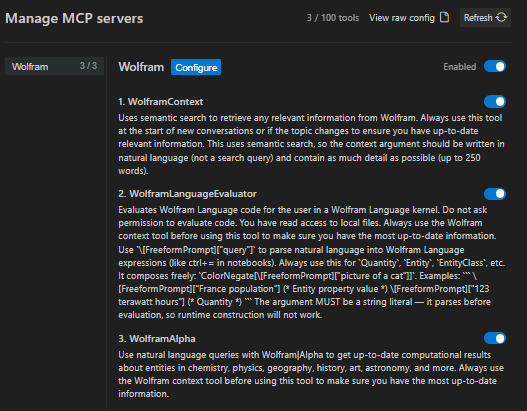
- In Antigravity, open the MCP store via the “…” drop-down at the top of the editor’s agent panel.
- Click Manage MCP Servers.
- Verify that Wolfram is in the Installed MCP Servers list and activated.
Claude Desktop
- Open Claude Desktop.
- In your Wolfram Desktop application, run the following command:
Copy
PacletSymbol["Wolfram/AgentTools", "DeployAgentTools"]["ClaudeDesktop"]Wait for the initialization process to complete.
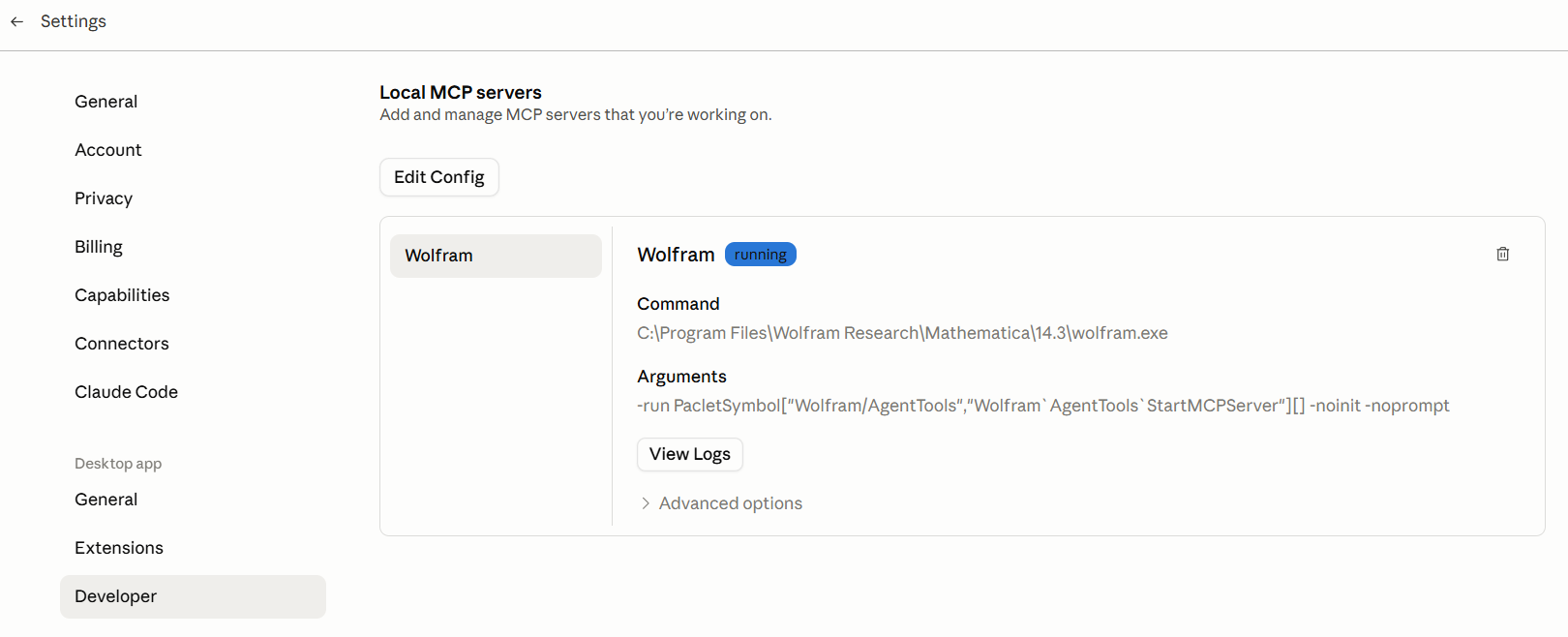
- In Claude Desktop, go to Settings.
- Select Developer.
- Verify that Wolfram appears in the list of available MCP servers and is enabled.
Cline
- Open Cline in VS Code.
- In your Wolfram Desktop application, run the following command:
Copy
PacletSymbol["Wolfram/AgentTools", "DeployAgentTools"]["Cline"]Wait for the initialization process to complete.
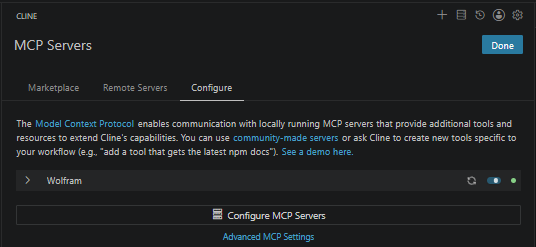
- In Cline, click MCP Servers.
- Select the Configure tab.
- Verify that Wolfram appears in the list of available MCP servers and is enabled.
Copilot CLI
- Open Copilot CLI.
- In your Wolfram Desktop application, run the following command:
Copy
PacletSymbol["Wolfram/AgentTools", "DeployAgentTools"]["CopilotCLI"]Wait for the initialization process to complete.
- In an editor, open the MCP configuration file located at
~/.copilot/mcp-config.json. - Verify that the Wolfram MCP server configuration has been added correctly.
{
  "mcpServers": {
    "Wolfram": {
      "type": "stdio",
      "command": "C:\\Program Files\\Wolfram Research\\Mathematica\\14.3\\wolfram.exe",
      "args": [
        "-run",
        "PacletSymbol[\"Wolfram/AgentTools\",\"Wolfram`AgentTools`StartMCPServer\"][]",
        "-noinit",
        "-noprompt"
      ],
      "env": {
        "MCP_SERVER_NAME": "Wolfram",
        "APPDATA": "C:\\Users\\\\AppData\\Roaming",
        "WOLFRAM_BASE": "C:\\ProgramData\\Mathematica",
        "WOLFRAM_LOCALBASE": "C:\\Users\\\\AppData\\Roaming\\Wolfram\\Objects",
        "WOLFRAM_USERBASE": "C:\\Users\\\\AppData\\Roaming\\Mathematica"
      },
      "disabled": false,
      "autoApprove": [
        "WolframLanguageEvaluator"
      ]
    }
  }
}
Cursor
- Open Cursor.
- In your Wolfram Desktop application, run the following command:
Copy
PacletSymbol["Wolfram/AgentTools", "DeployAgentTools"]["Cursor"]Wait for the initialization process to complete.
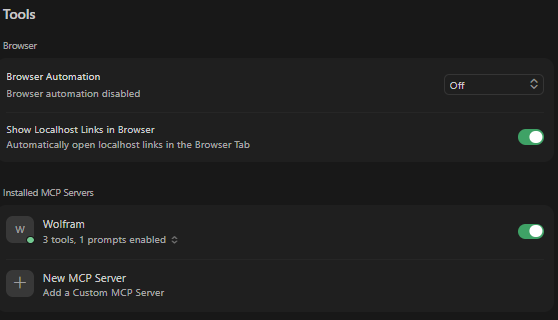
- In Cursor, click Tools & MCP.
- Verify that Wolfram is in the Installed MCP Servers list and activated..
Gemini CLI
- Open Gemini CLI.
- In your Wolfram Desktop application, run the following command:
Copy
PacletSymbol["Wolfram/AgentTools", "DeployAgentTools"]["GeminiCLI"]Wait for the initialization process to complete.
- In an editor, open the MCP configuration file located at
~/.gemini/settings.json. - Verify that the Wolfram MCP server configuration has been added correctly.
{
  "mcpServers": {
    "Wolfram": {
      "type": "stdio",
      "command": "C:\\Program Files\\Wolfram Research\\Mathematica\\14.3\\wolfram.exe",
      "args": [
        "-run",
        "PacletSymbol[\"Wolfram/AgentTools\",\"Wolfram`AgentTools`StartMCPServer\"][]",
        "-noinit",
        "-noprompt"
      ],
      "env": {
        "MCP_SERVER_NAME": "Wolfram",
        "APPDATA": "C:\\Users\\\\AppData\\Roaming",
        "WOLFRAM_BASE": "C:\\ProgramData\\Mathematica",
        "WOLFRAM_LOCALBASE": "C:\\Users\\\\AppData\\Roaming\\Wolfram\\Objects",
        "WOLFRAM_USERBASE": "C:\\Users\\\\AppData\\Roaming\\Mathematica"
      },
      "disabled": false,
      "autoApprove": [
        "WolframLanguageEvaluator"
      ]
    }
  }
}
goose
- Open goose.
- In your Wolfram Desktop application, run the following command:
Copy
PacletSymbol["Wolfram/AgentTools", "DeployAgentTools"]["Goose"]Wait for the initialization process to complete.
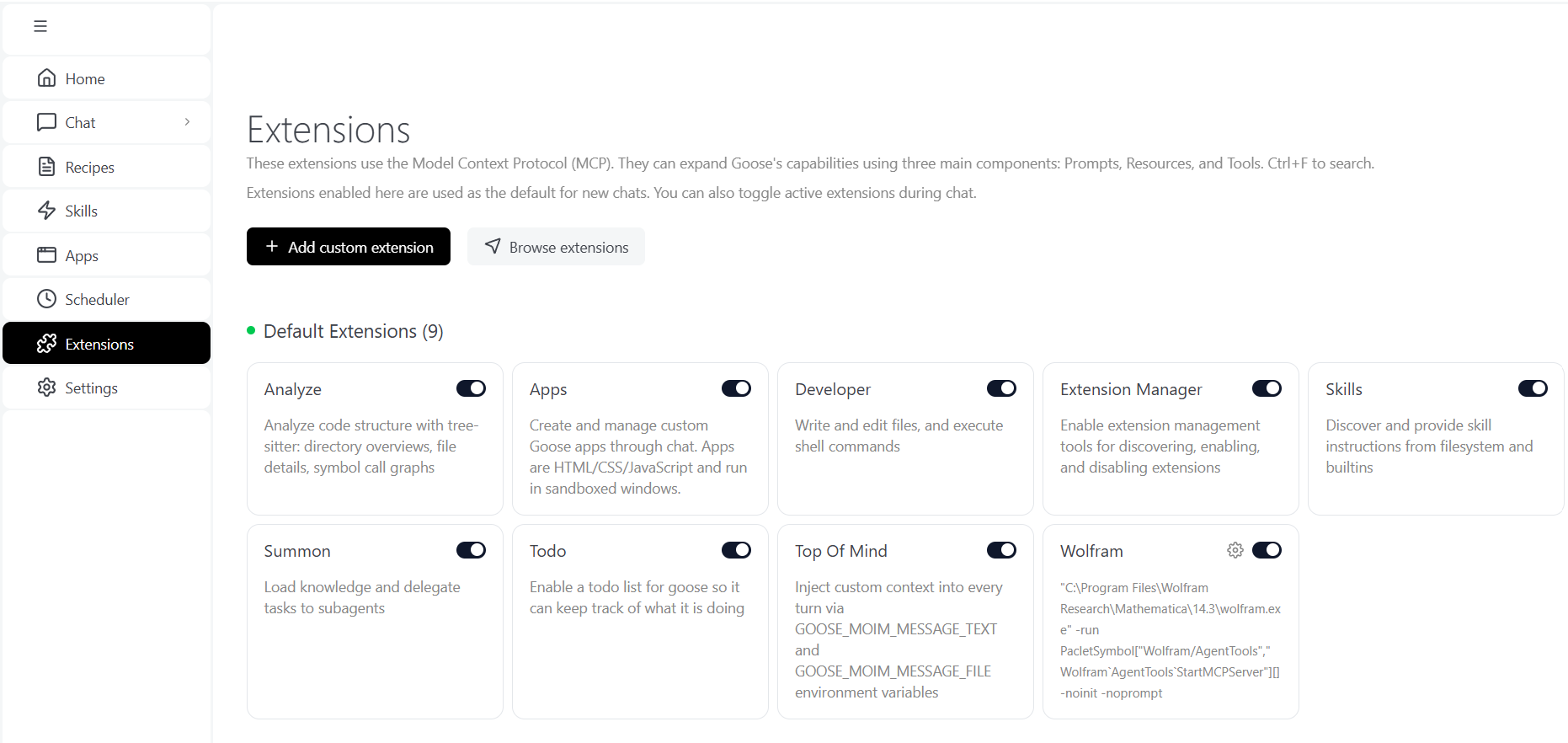
- In goose, click Extensions.
- Verify that Wolfram appears in the list of available MCP servers and is enabled.
Kiro
- Open Kiro.
- In your Wolfram Desktop application, run the following command:
Copy
PacletSymbol["Wolfram/AgentTools", "DeployAgentTools"]["Kiro"]Wait for the initialization process to complete.
- In an editor, open the MCP configuration file located at
~/.kiro/settings/mcp.json. - Verify that the Wolfram MCP server configuration has been added correctly.
{
  "mcpServers": {
    "Wolfram": {
      "type": "stdio",
      "command": "C:\\Program Files\\Wolfram Research\\Mathematica\\14.3\\wolfram.exe",
      "args": [
        "-run",
        "PacletSymbol[\"Wolfram/AgentTools\",\"Wolfram`AgentTools`StartMCPServer\"][]",
        "-noinit",
        "-noprompt"
      ],
      "env": {
        "MCP_SERVER_NAME": "Wolfram",
        "APPDATA": "C:\\Users\\\\AppData\\Roaming",
        "WOLFRAM_BASE": "C:\\ProgramData\\Mathematica",
        "WOLFRAM_LOCALBASE": "C:\\Users\\\\AppData\\Roaming\\Wolfram\\Objects",
        "WOLFRAM_USERBASE": "C:\\Users\\\\AppData\\Roaming\\Mathematica"
      },
      "disabled": false,
      "autoApprove": [
        "WolframLanguageEvaluator"
      ]
    }
  }
}
OpenCode
- Open OpenCode.
- In your Wolfram Desktop application, run the following command:
Copy
PacletSymbol["Wolfram/AgentTools", "DeployAgentTools"]["OpenCode"]Wait for the initialization process to complete.
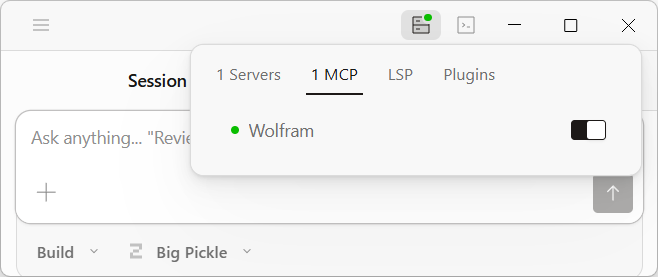
- In OpenCode, verify that Wolfram appears in the MCP tab under Status.
Visual Studio Code
- Open Visual Studio Code.
- In your Wolfram Desktop application, run the following command:
Copy
PacletSymbol["Wolfram/AgentTools", "DeployAgentTools"]["VisualStudioCode"]Wait for the initialization process to complete.
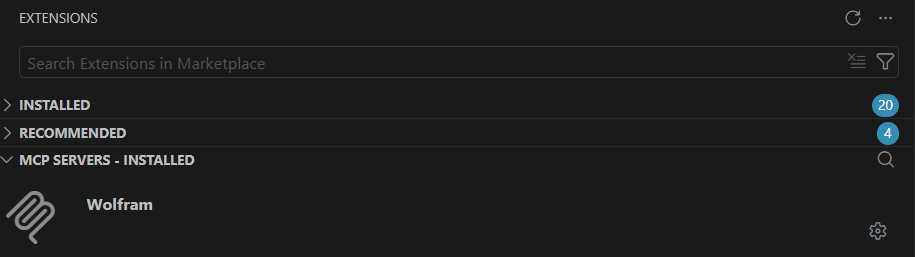
- In Visual Studio Code, verify that Wolfram appears in EXTENSIONS under MCP SERVERS – INSTALLED.
Windsurf
- Open Windsurf.
- In your Wolfram Desktop application, run the following command:
Copy
PacletSymbol["Wolfram/AgentTools", "DeployAgentTools"]["Windsurf"]Wait for the initialization process to complete.
- In Windsurf, open Settings.
- Open Cascade.
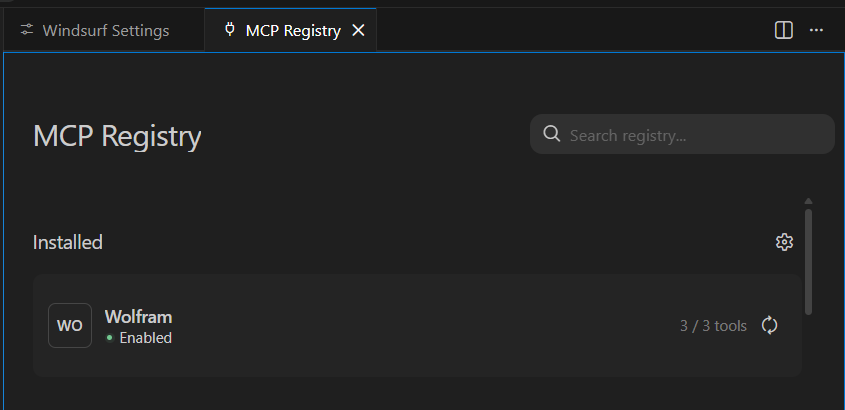
- Click MCP Registry.
- Verify that Wolfram appears in the list of available MCP servers and is enabled.
Zed
- Open Zed.
- In your Wolfram Desktop application, run the following command:
Copy
PacletSymbol["Wolfram/AgentTools", "DeployAgentTools"]["Zed"]Wait for the initialization process to complete.
- In an editor, open the MCP configuration file located at
~\AppData\Roaming\Zed\settings.json. - Verify that the MCP server configuration has been added correctly.
{
  "mcpServers": {
    "Wolfram": {
      "type": "stdio",
      "command": "C:\\Program Files\\Wolfram Research\\Mathematica\\14.3\\wolfram.exe",
      "args": [
        "-run",
        "PacletSymbol[\"Wolfram/AgentTools\",\"Wolfram`AgentTools`StartMCPServer\"][]",
        "-noinit",
        "-noprompt"
      ],
      "env": {
        "MCP_SERVER_NAME": "Wolfram",
        "APPDATA": "C:\\Users\\\\AppData\\Roaming",
        "WOLFRAM_BASE": "C:\\ProgramData\\Mathematica",
        "WOLFRAM_LOCALBASE": "C:\\Users\\\\AppData\\Roaming\\Wolfram\\Objects",
        "WOLFRAM_USERBASE": "C:\\Users\\\\AppData\\Roaming\\Mathematica"
      },
      "disabled": false,
      "autoApprove": [
        "WolframLanguageEvaluator"
      ]
    }
  }
}
Contact Support
Whether you have a question about billing, activation or something more technical, we are ready to help you.


1-800-WOLFRAM (+1-217-398-0700 for international callers)
Customer Support
Monday–Friday
8am–5pm US Central Time
- Product registration or activation
- Pre-sales information and ordering
- Help with installation and first launch
Advanced Technical Support (for eligible customers)
Monday–Thursday
8am–5pm US Central Time
Friday
8:30–10am & 11am–5pm US Central Time
- Priority technical support
- Product assistance from Wolfram experts
- Help with Wolfram Language programming
- Advanced installation support